Extension store link
Opens the Microsoft Edge Add-ons page in the Sandbox.
↗ Open AutoSelectGrade in Edge Add-ons
How it works (video)
What you’ll need
- Windows 10/11 Pro or Enterprise (Sandbox is not on Home editions).
- Hardware virtualization enabled in BIOS/UEFI.
- Microsoft Edge (built-in).
Sandbox resets when closed—extensions don’t persist. Re-install inside Sandbox whenever you need it.
Part 1 — Enable Windows Sandbox (one-time)
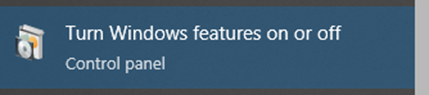
- Open Turn Windows features on or off from the Start menu.
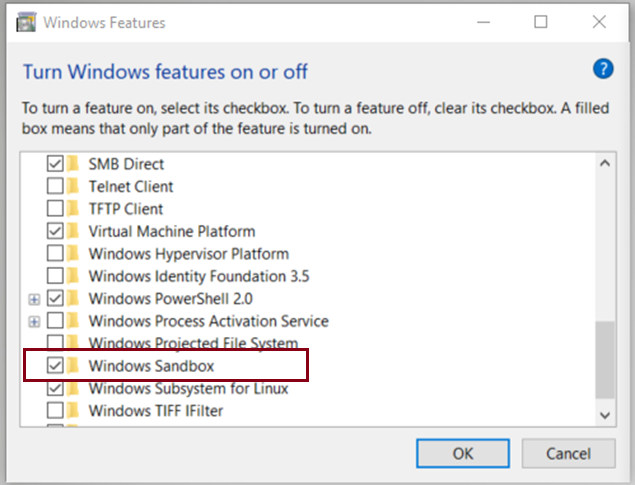
- Tick Windows Sandbox and click OK.
- Restart your PC when prompted.
Show screenshots
Part 2 — Install the extension in Sandbox (each time you use it)
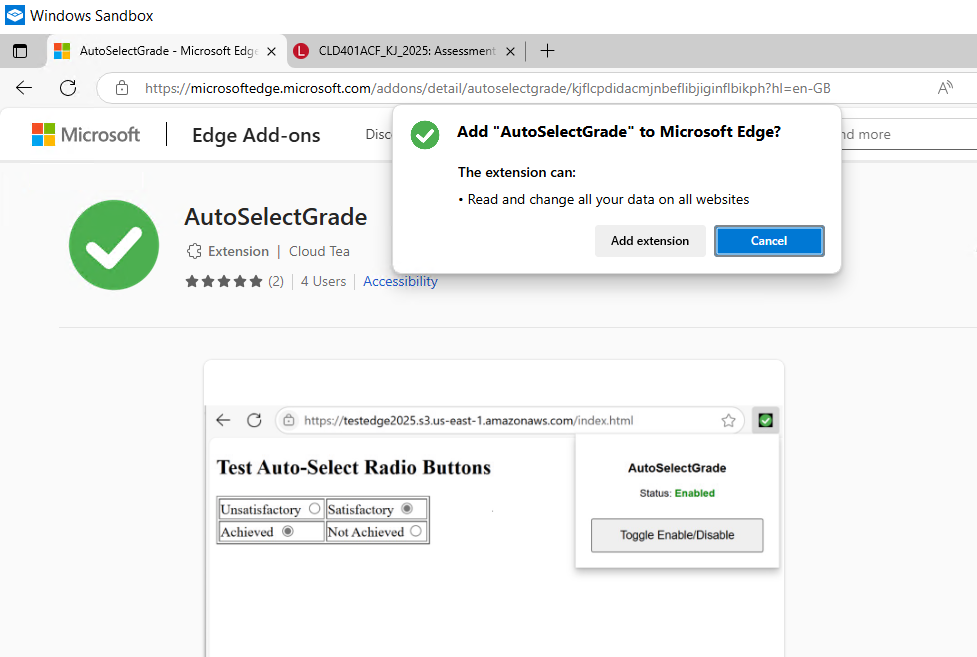
- Open Windows Sandbox (Start → Windows Sandbox).
- Open Microsoft Edge inside the Sandbox.
- Go to the Add-ons page: AutoSelectGrade – Microsoft Edge Add-ons.
- Click Get → Add extension.
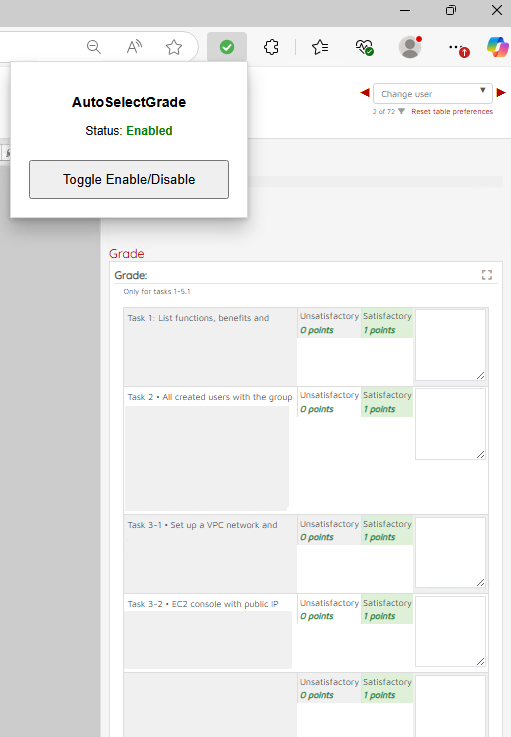
- Pin it: open the Extensions menu (puzzle icon) → click the **pin** next to AutoSelectGrade.
- On your assessment page, click the extension icon and set Status: Enabled.
Show screenshots

Part 3 — Direct installation on your home computer (optional)
If you are using your own computer (not restricted by ICT), you can install the extension directly into Microsoft Edge without Windows Sandbox. This will keep the extension available permanently.
- Open Microsoft Edge on your computer.
- Go to the Add-ons page: AutoSelectGrade – Microsoft Edge Add-ons .
- Click Get → Add extension.
- Open the Extensions menu (puzzle icon) and Pin AutoSelectGrade for quick access.
- Click the extension icon and set Status: Enabled on your assessment page.
Show screenshots
Troubleshooting
“Windows Sandbox” isn’t listed
- Check you’re on Windows 10/11 Pro or Enterprise.
- Enable virtualization in BIOS/UEFI (often named Intel VT-x or AMD-V).
- Ensure Hyper-V/Virtualization Platform features are enabled if required by your build.
The extension doesn’t appear
- Confirm you installed it **inside** Sandbox, not your main Windows.
- Open the Extensions menu in Edge and click the **pin** icon.
Quick reference
- Store link: AutoSelectGrade
- Demo video: YouTube